This page shows all the styles of the printable class schedule. Click a picture or a link to open the class schedule maker with that style and color ready to go. Any lessons and subjects you have already typed stay when you change the style.
In the maker you can still choose the days, calculate the times automatically, color-code the subjects and pick the paper size and orientation. Print the finished schedule or save it as a PDF for free.
Styles: Clear · Fresh · Light · Cards · Modern · Playful · School · Chalkboard · Space · Rainbow · Owl · Grid notebook
Basic styles
The basic styles are clean and simple. They suit all ages and especially middle school, high school and college.
Clear
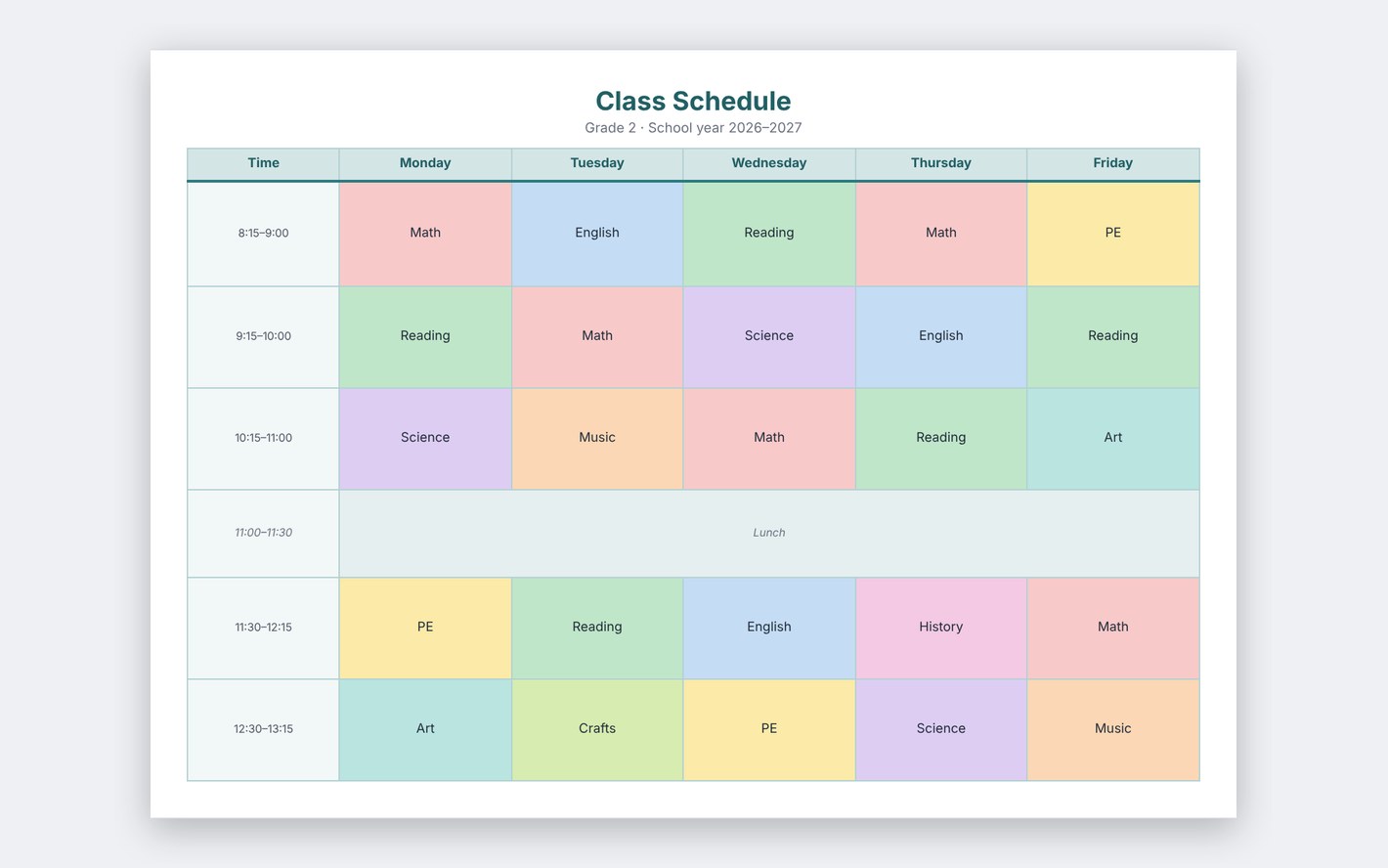
Clear is the basic class schedule style: a light header row, thin lines and times in their own column. The subject colors stand out clearly against the calm background.
It suits all ages and prints neatly in black and white too.
Try colors: Blue · Green · Red
Make a class schedule in the Clear style →
Fresh
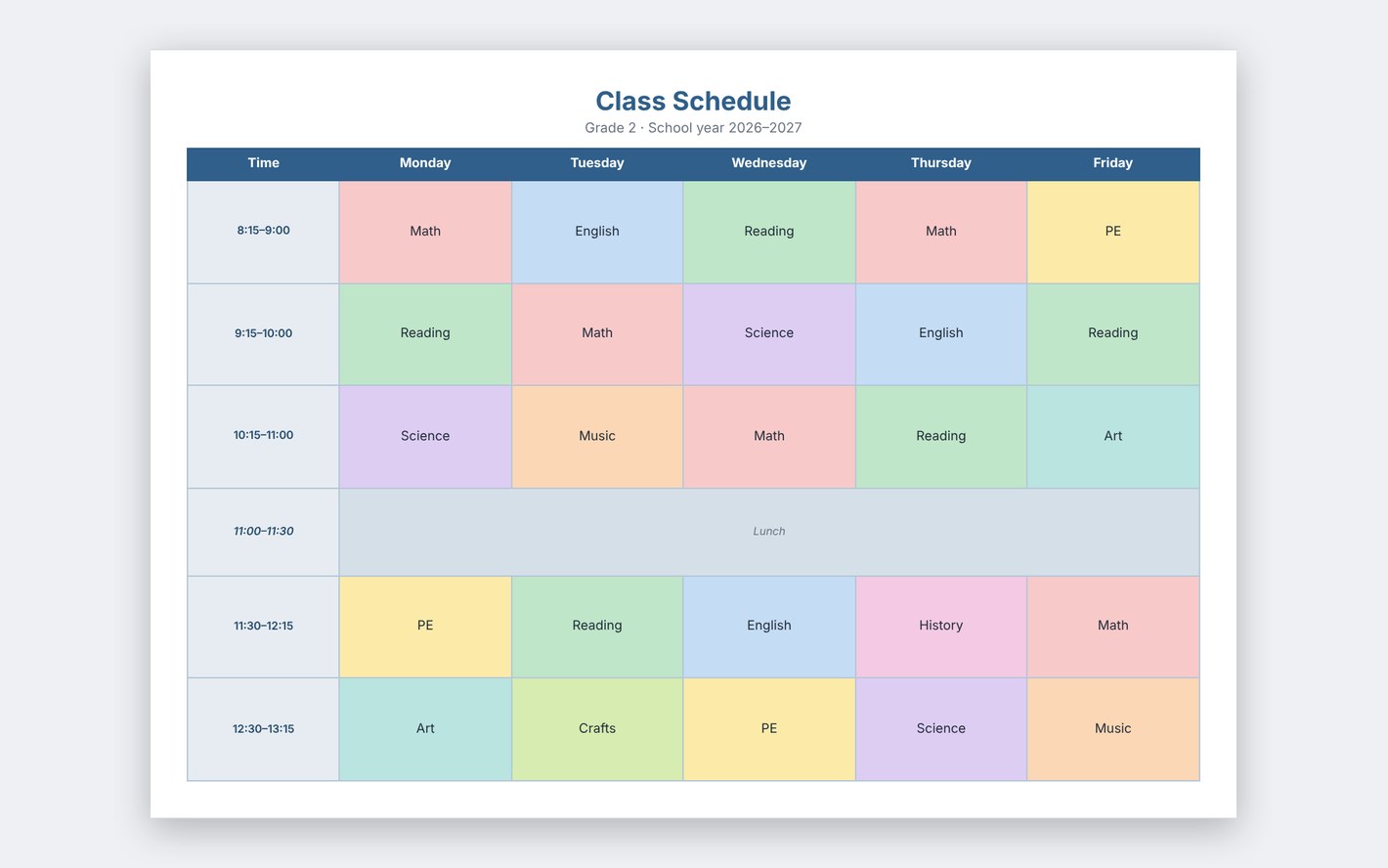
Fresh fills the header row with your chosen color, and the times are set in bold in the same shade.
It is clear and bright and stands out on the fridge door or the classroom wall.
Try colors: Teal · Green · Navy
Make a class schedule in the Fresh style →
Light
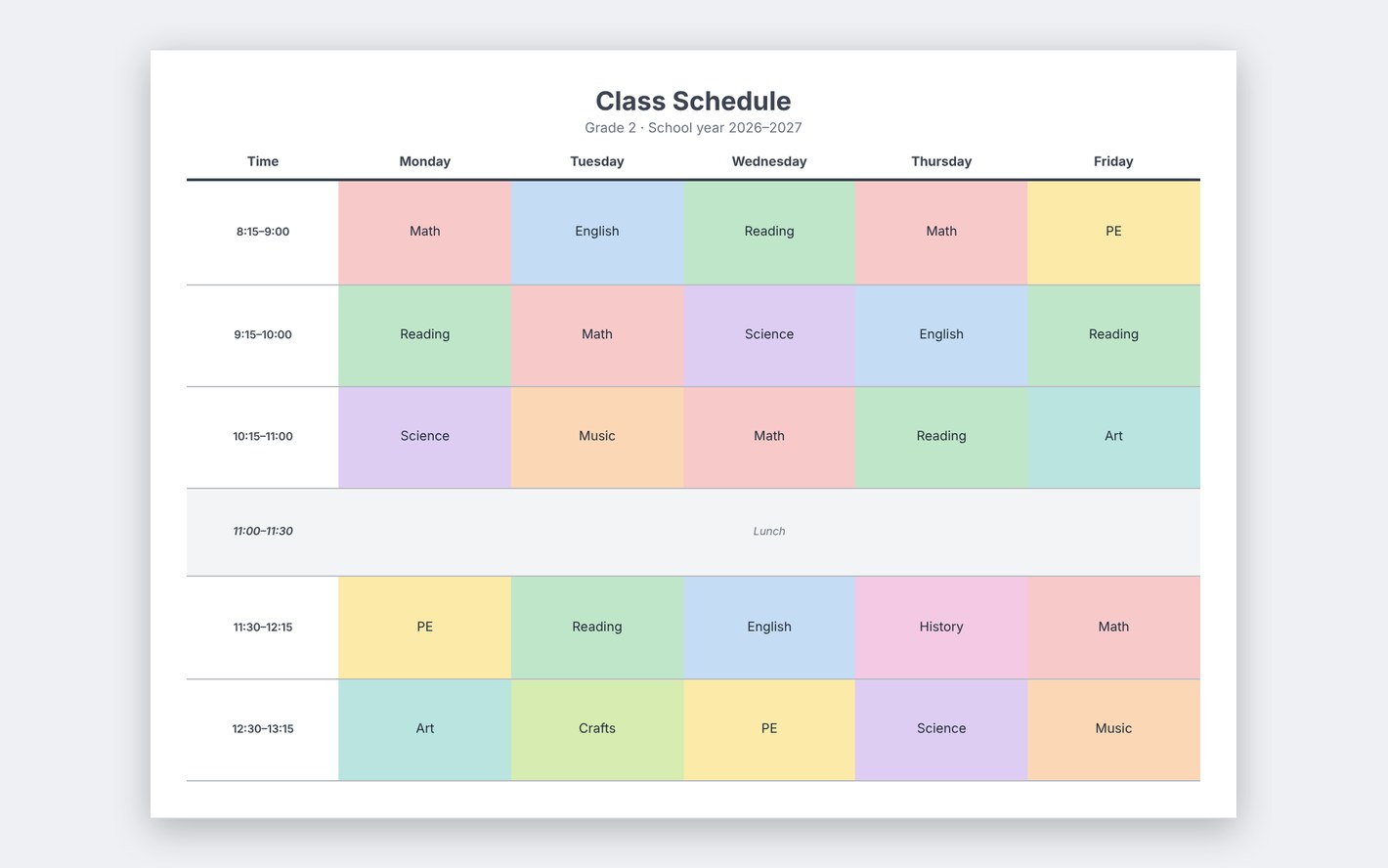
Light leaves out vertical lines and heavy borders. Only horizontal rules remain, so the schedule looks airy and minimal.
It suits middle school, high school and college when you want a clean timetable without decorations.
Try colors: Navy · Olive · Ochre
Make a class schedule in the Light style →
Cards
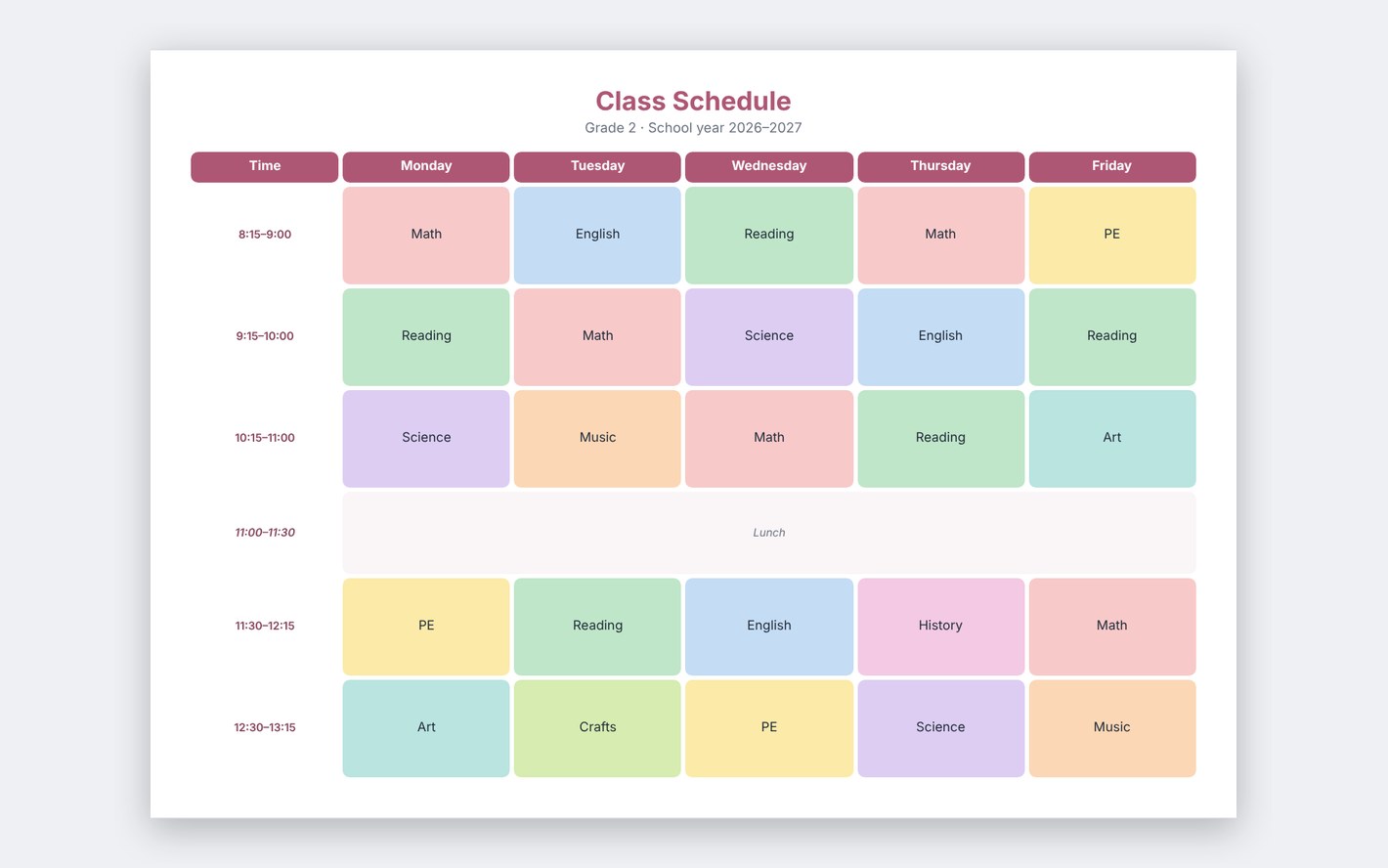
In the Cards style each lesson is its own rounded card, and the day headers are solid color.
A soft, modern style that really shows off the subject colors.
Try colors: Plum · Teal · Terracotta
Make a class schedule in the Cards style →
Modern
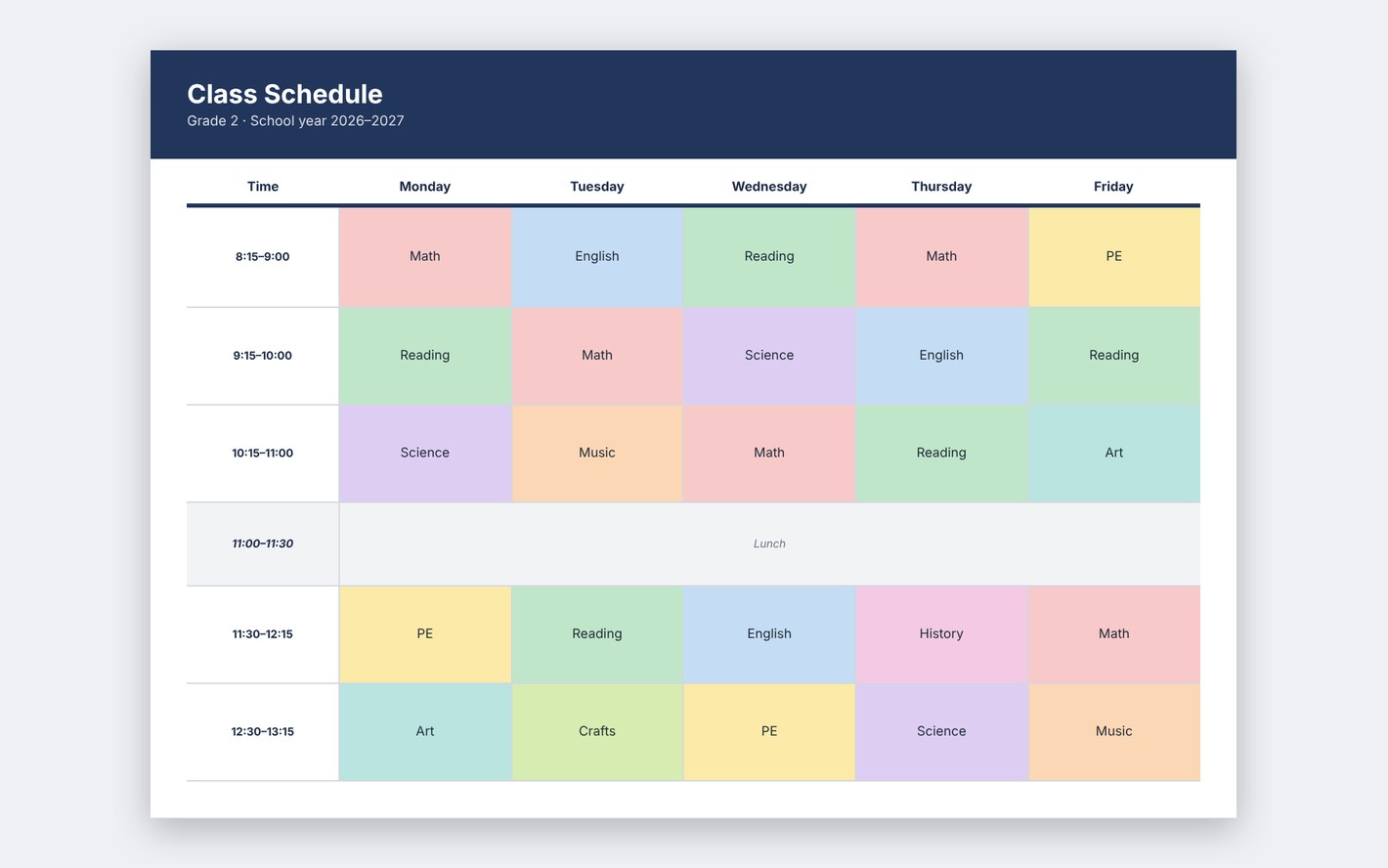
The Modern style puts the title and details on a full-width color band, with a light table below.
It looks stylish on a student desk and suits older students well.
Try colors: Graphite · Red · Green
Make a class schedule in the Modern style →
Kids styles
The kids styles have a round font, cheerful colors and drawings next to the title that change color with the color you choose.
Playful
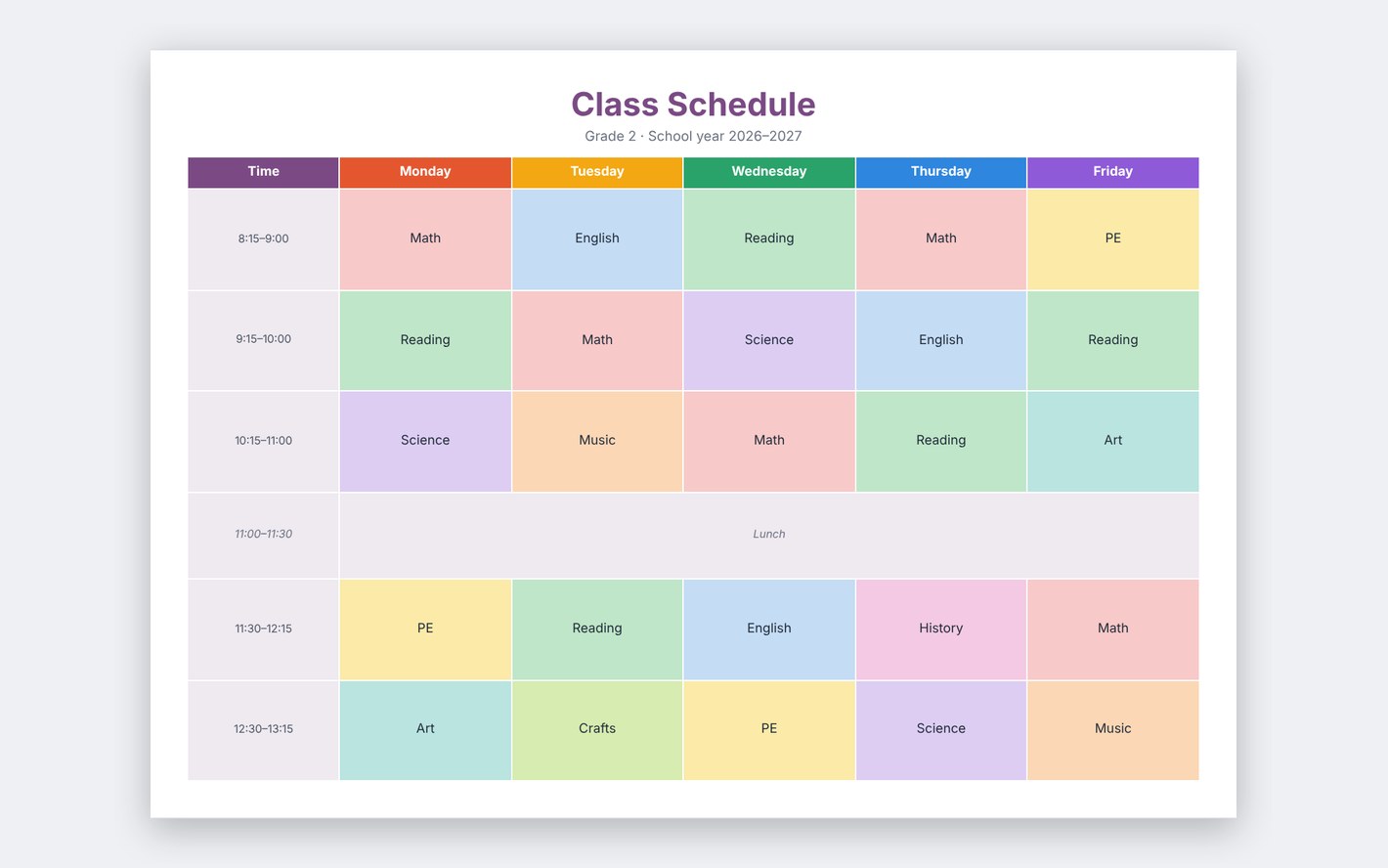
Playful is a kids style where each day of the week gets its own rainbow color and the font is round and friendly.
The colorful days help young students find the right day quickly.
Try colors: Terracotta · Teal · Rose
Make a class schedule in the Playful style →
School
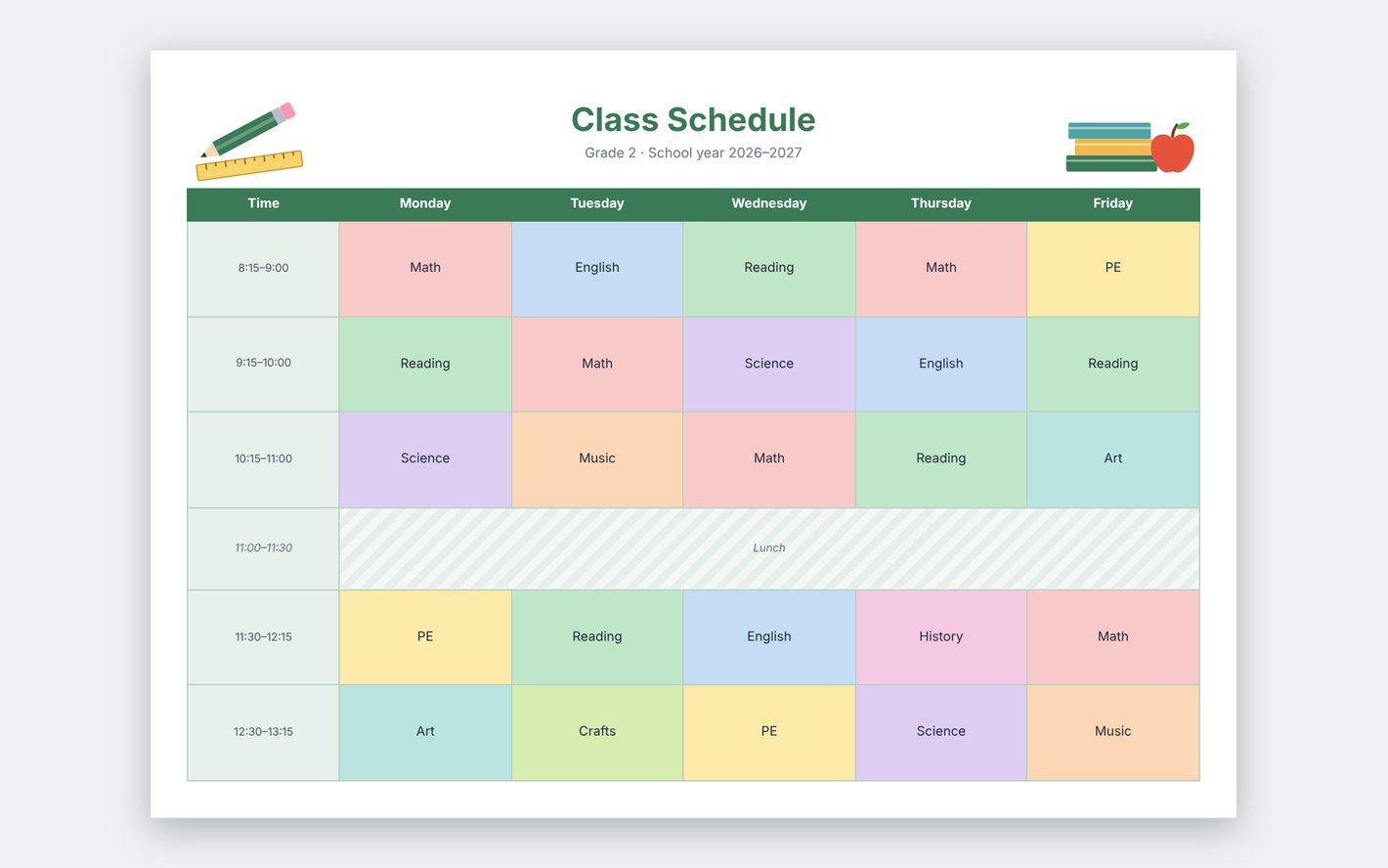
The School style has a pencil, ruler, stack of books and an apple next to the title, and breaks are marked with stripes.
A classic school look that is especially nice for elementary school kids.
Try colors: Blue · Red · Ochre
Make a class schedule in the School style →
Chalkboard
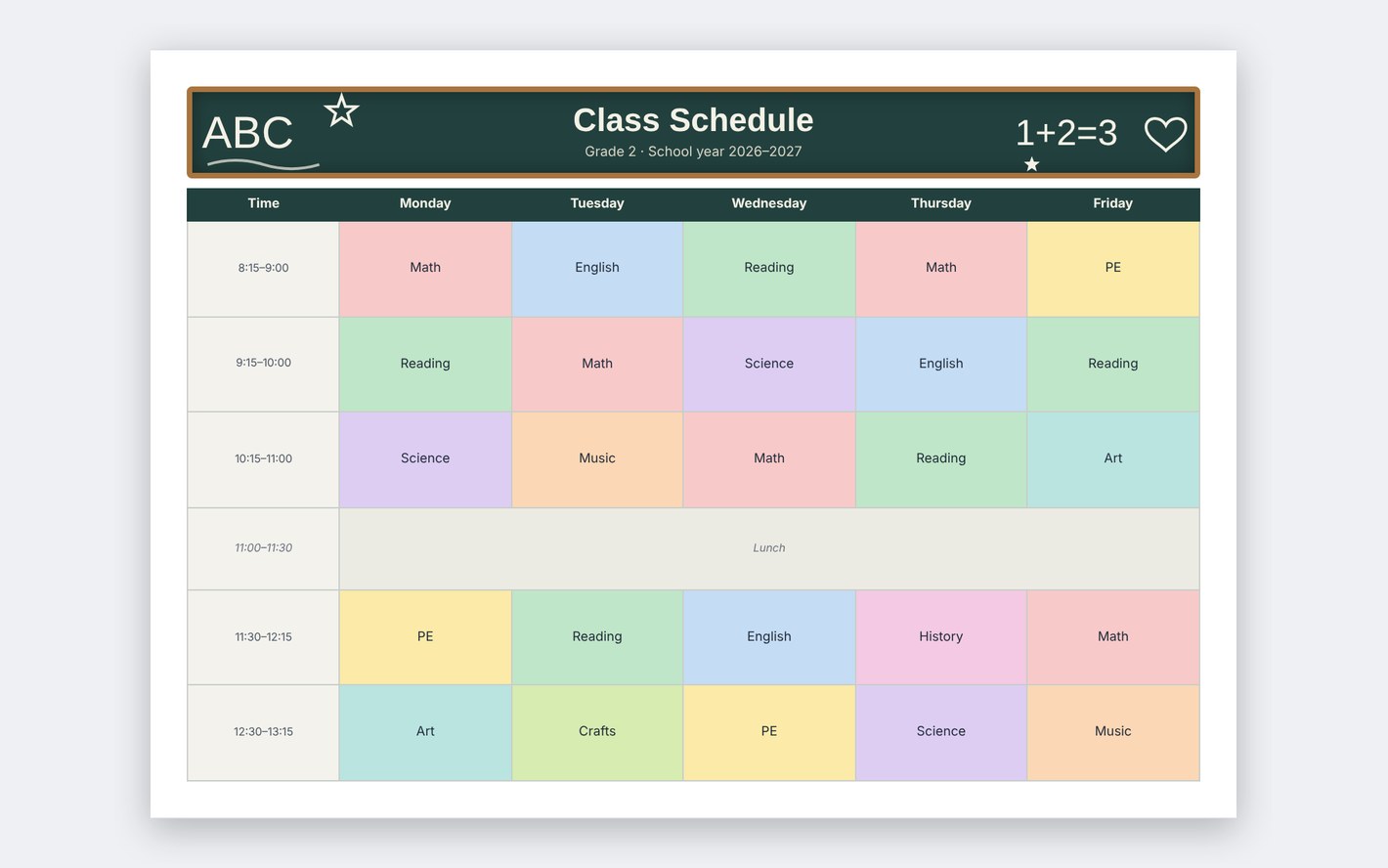
The Chalkboard style puts the title on a green chalkboard with a wooden frame, with ABC and 1+2=3 drawn in chalk in the corners.
It suits a classroom timetable and anyone who loves a school feel.
Try colors: Green · Navy · Graphite
Make a class schedule in the Chalkboard style →
Space
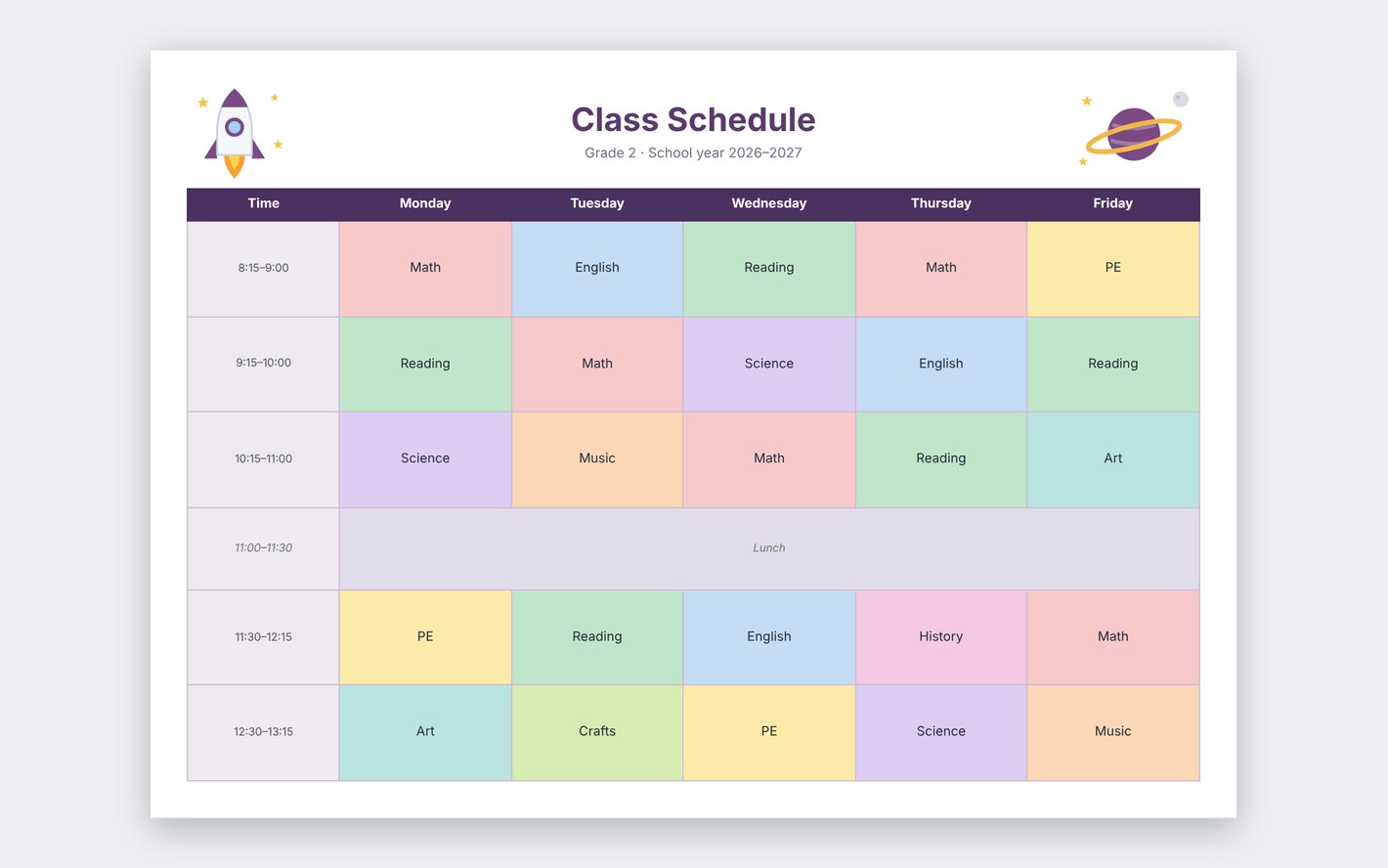
The Space style decorates the title with a rocket and a planet, and the header row is a deep space color.
A fun style for students who love space and stars.
Make a class schedule in the Space style →
Rainbow
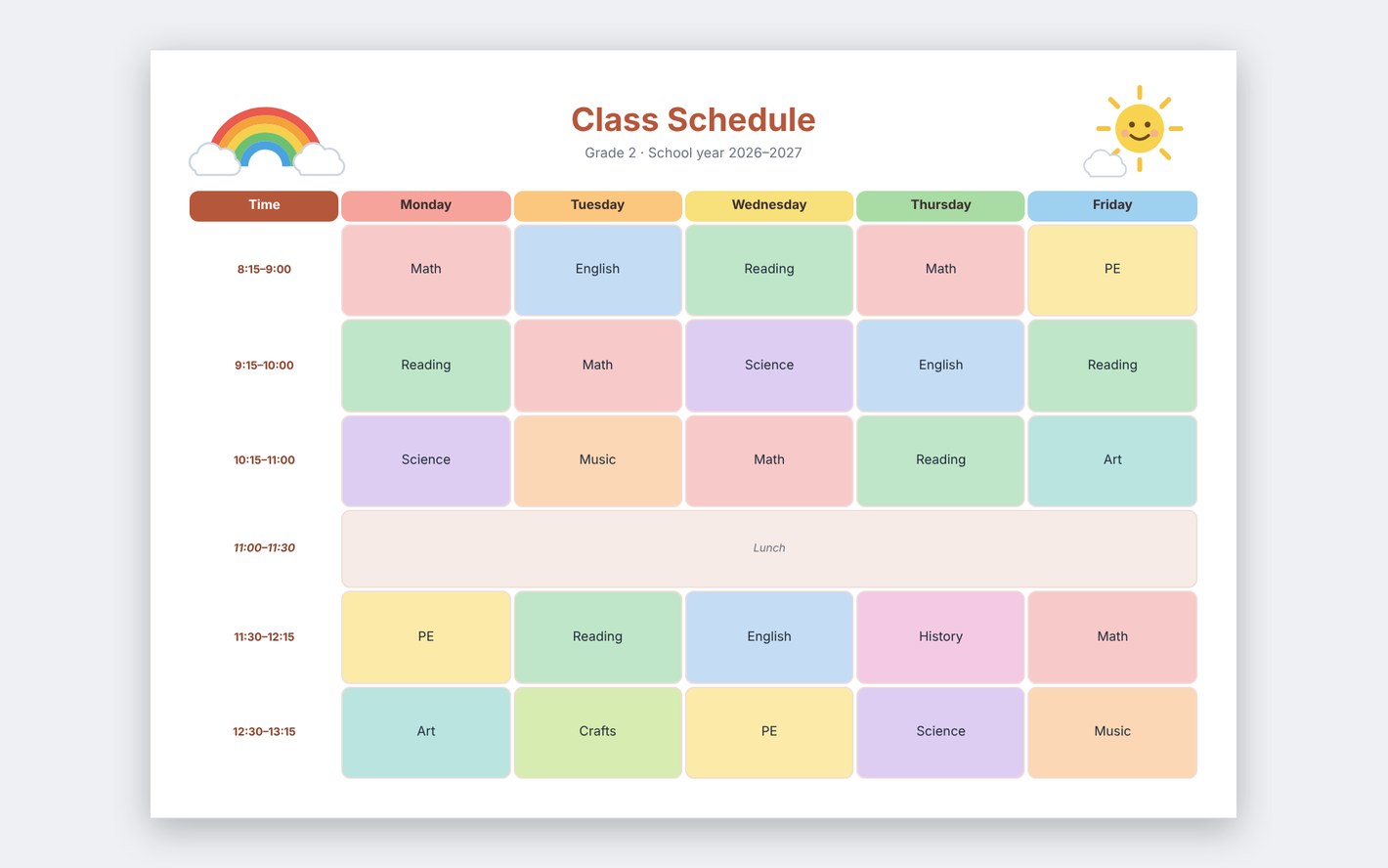
The Rainbow style uses pastel rainbow colors for the day headers, with a rainbow and a sun next to the title.
A cheerful, soft style for young students and preschoolers.
Try colors: Rose · Blue · Green
Make a class schedule in the Rainbow style →
Owl
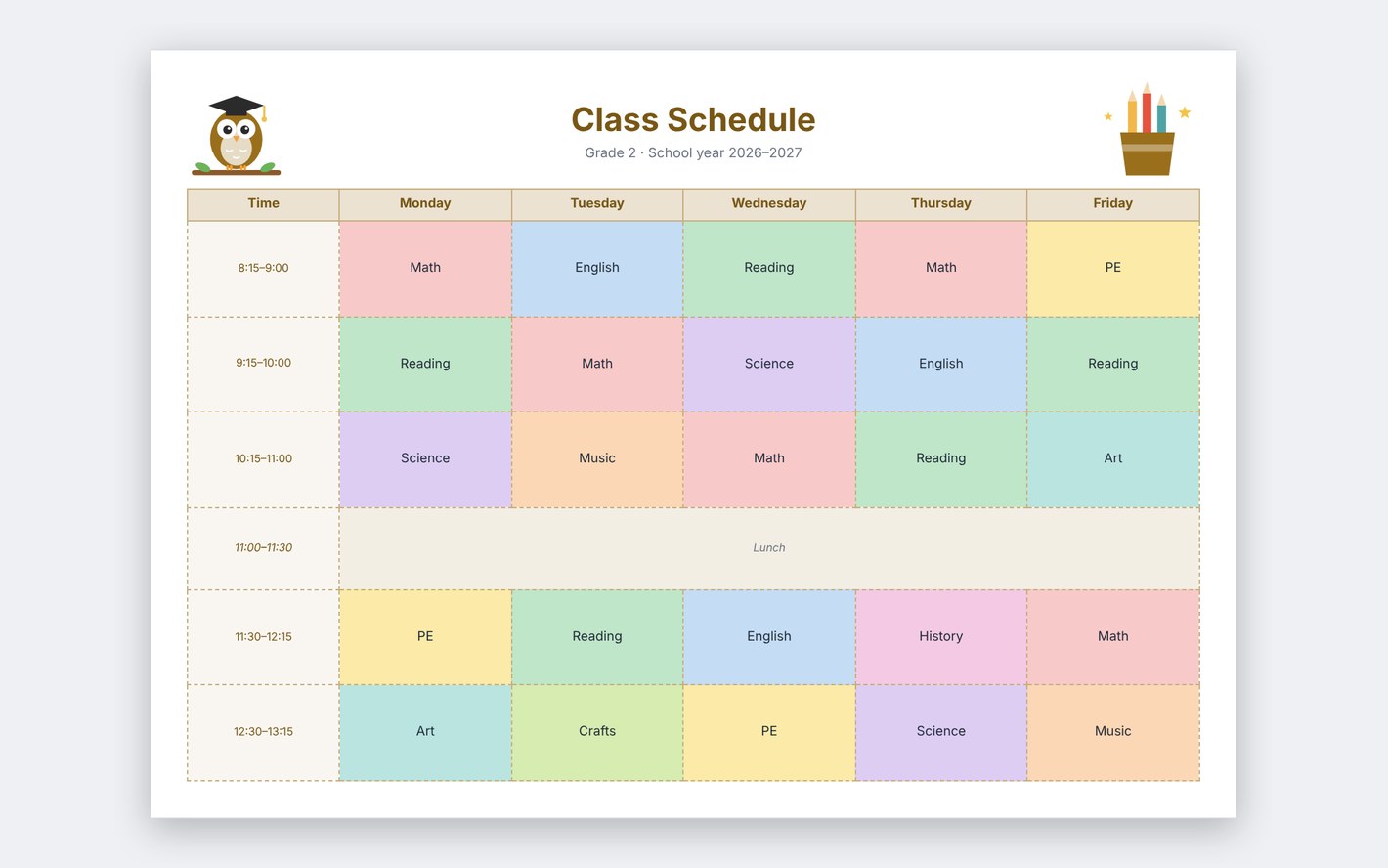
The Owl style decorates the title with a wise owl and a pencil cup, and the boxes have dashed borders.
A warm, playful style that is perfect for the start of the school year.
Try colors: Green · Terracotta · Navy
Make a class schedule in the Owl style →
Grid notebook
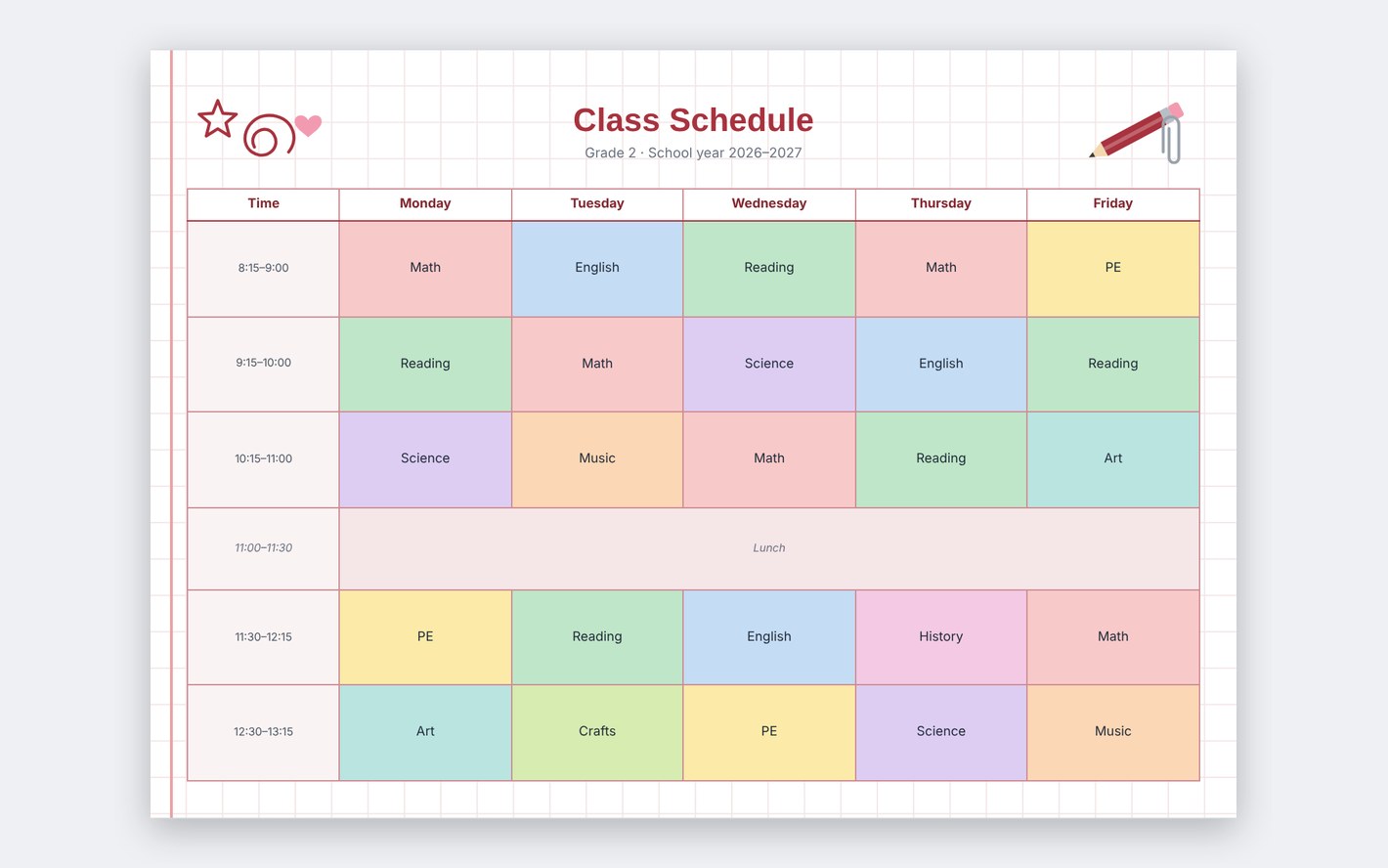
Grid notebook looks like a school notebook, with a faint grid, a red margin line on the left and a handwritten-style title.
It suits students of all ages and bullet journal style timetables.
Try colors: Blue · Green · Plum
Make a class schedule in the Grid notebook style →
Tips for making a class schedule
- Enter the start time and lesson lengths first, and all the times are calculated at once.
- The same subjects get the same color automatically. You can change colors under Subjects in the sidebar.
- Want to fill it in by hand? Clear the lessons and print a blank template.